How to Link Department Secretaries and Cost Center Heads in Bulk
This guide explains how to assign department secretaries and cost center heads to multiple Departments or Cost Centers at once using an CSV upload, eliminating the need for manual updates.
What are these mappings for?
- Department Secretary Mapping: Links a department secretary to specific company departments..
- Cost Center Head Mapping: Links a cost center head to required cost centers to monitor and approve bookings.
Step 1: Open the Upload Menu
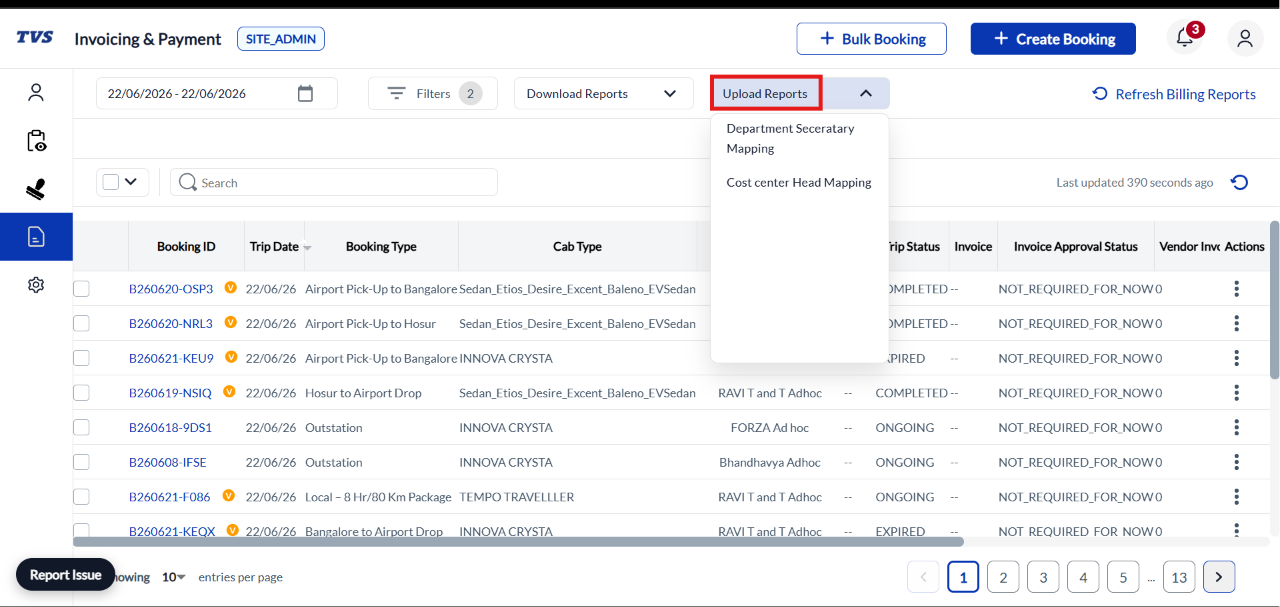
- Log in to site URL, then go to Invoicing & Payment page in Rentlz dashboard.
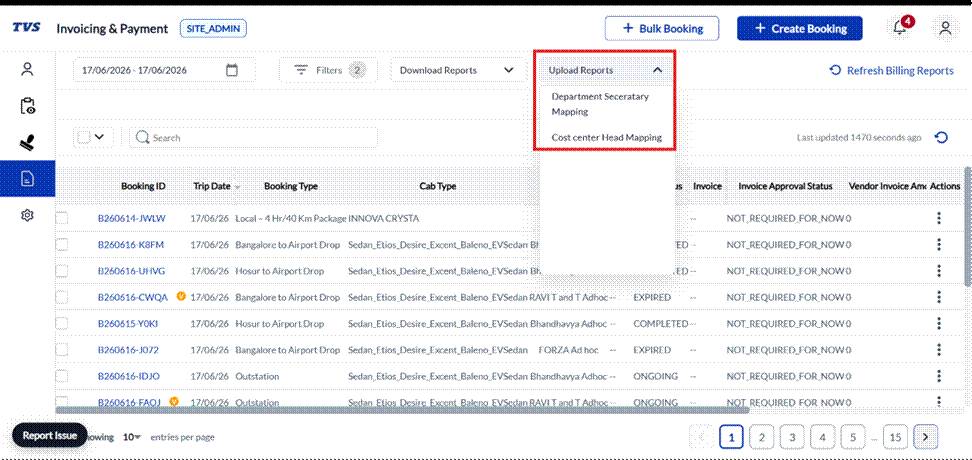
- Click the Upload Reports button in the top menu bar to open the dropdown menu.
- Choose the option you want to update:
- Click Department Secretary Mapping to update department secretaries.
- Click Cost center Head Mapping to update cost center heads.
Step 2: Download the Correct Template
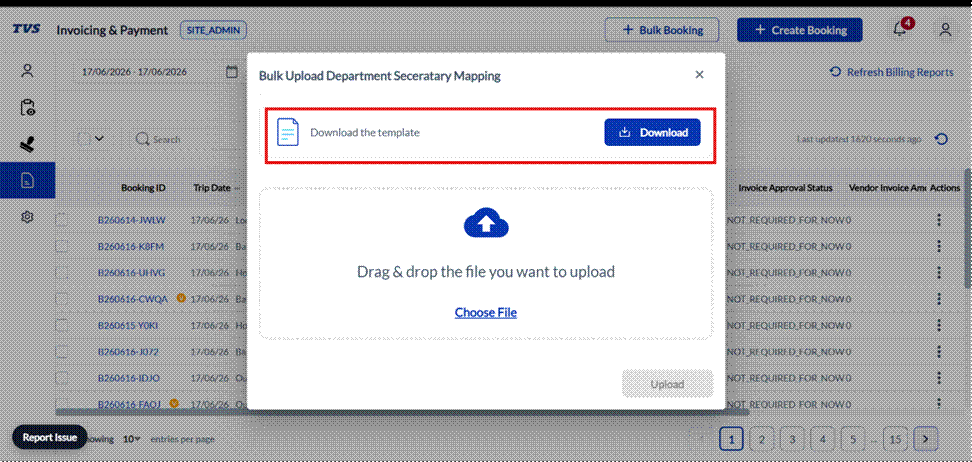
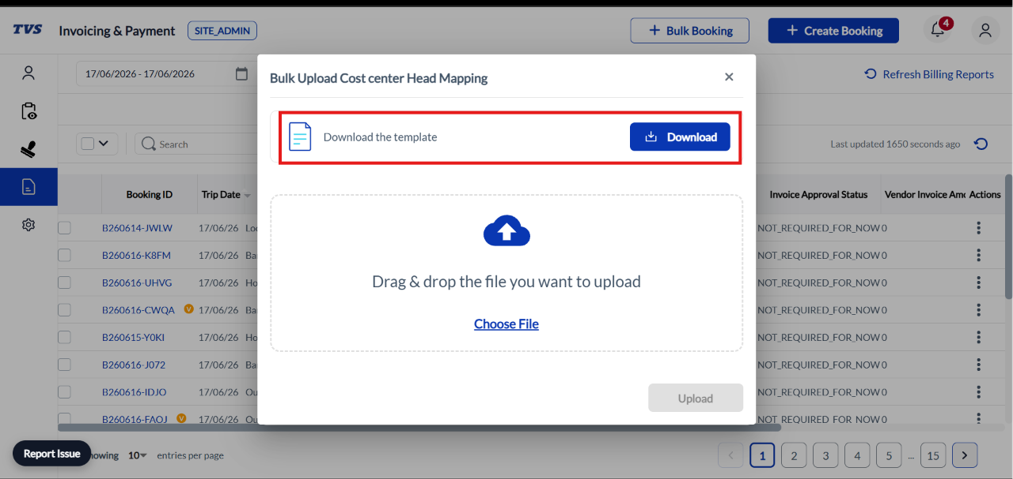
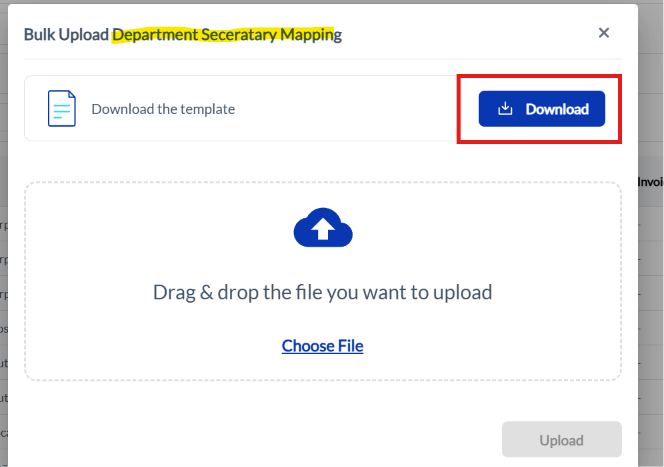
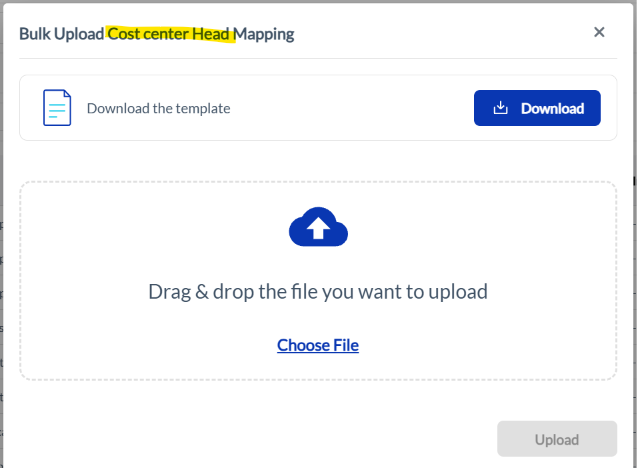
A window will pop up on your screen based on your choice (e.g., "Bulk Upload Department Secretary Mapping" or "Bulk Upload Cost Center Head Mapping").
Click the blue Download button. This downloads a CSV spreadsheet to your computer that already has the correct column headers and your system's existing data filled in.
Step 3: Fill in Your Spreadsheet
Open the downloaded CSV file. Depending on which template you downloaded, you will see three columns:
Column Name | What to Type / Instructions |
Department (or)
Cost Center | Type the exact name of the Department or the exact name/code of the Cost Center as it is spelled in the system. |
Head Email(s) | Type the work email address of the approver, secretary, or head. Adding Multiple People: If a department or cost center has more than one head, you can list multiple email addresses in this cell. Just separate them with a comma (for example: approver1@company.com, approver2@company.com). |
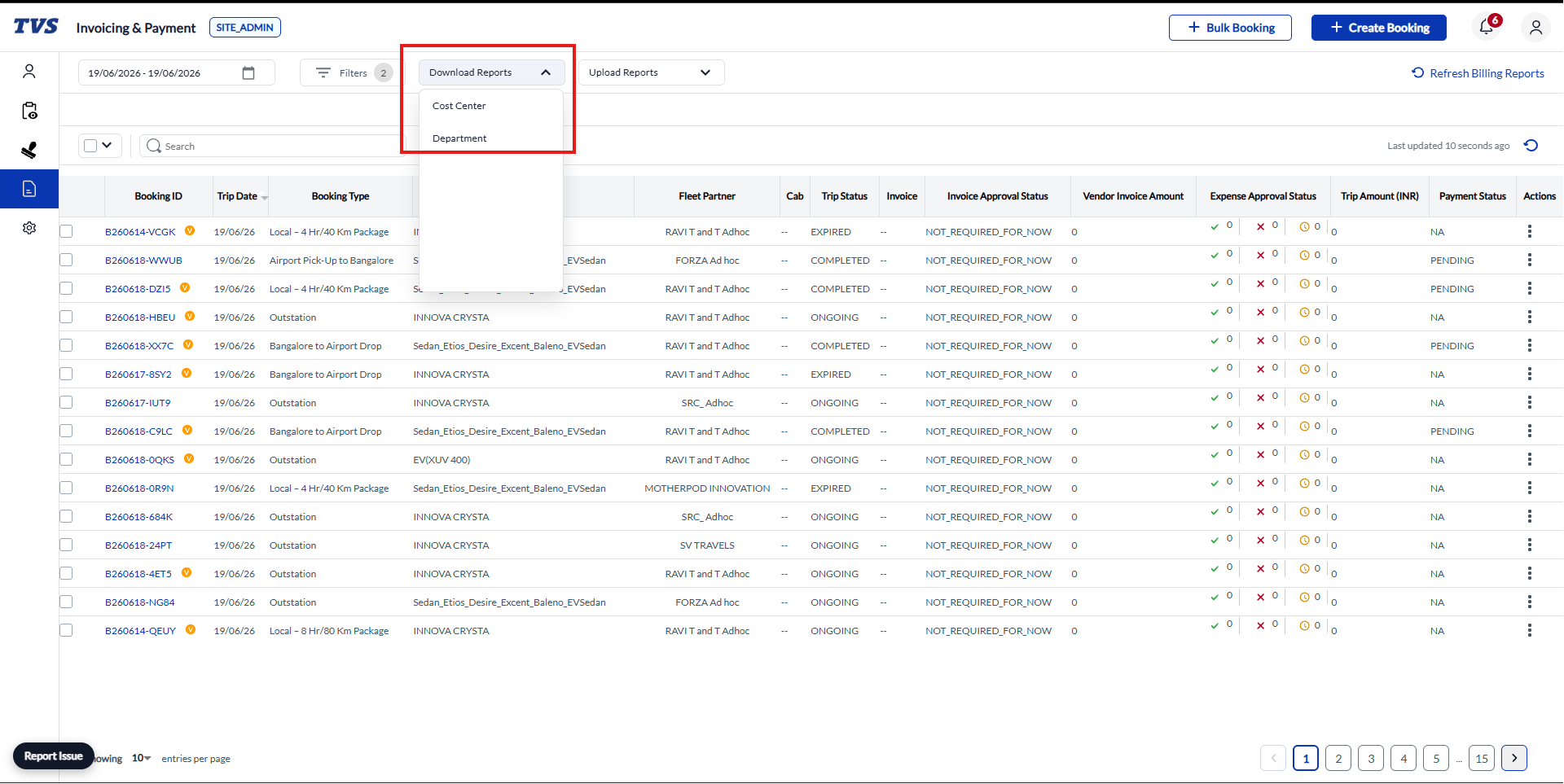
To add/update/remove cost center head or department secretary.
Go to Invoicing and Payment Dashboard.
Click on UPLOAD REPORT.
Updating or Removing Department Secretary
Download the default Department Secretary template.
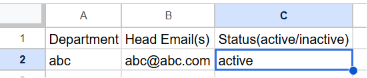
To Remove an Existing Department Secretary
Enter the Department.
Enter the existing Secretary Email.
Set Status to Inactive.
To Update a Department Secretary
Enter the Department.
Enter the new Secretary Email.
Set Status to Active.
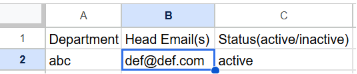
Example:
If the current department secretary for Finance is abc@abc.com and needs to be changed to def@def.com, upload the template with:
Updating or Removing Cost Center Head
Download the default Cost Center Head template.
To Remove an Existing Cost Center Head
Enter the Cost Center.
Enter the existing Head Email.
Set Status to Inactive.
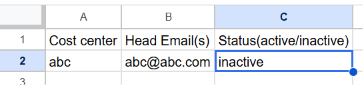
This will remove the existing cost center head mapping.
To Update a Cost Center Head
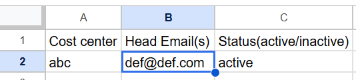
Enter the Cost Center.
Enter the new Head Email.
Set Status to Active.
Example:
If the existing head for cost center "ABC" is abc@abc.com and needs to be changed to def@def.com, upload the template with:
Note:
Status = Active → Creates or updates the mapping.
Status = Inactive → Removes the existing mapping.
Important Formatting Rules:
- Keep Headers Unchanged: Do not edit, rename, or delete the column headers (the first row of the spreadsheet).
- File Size Limit: You can upload a maximum of 1,000 rows in a single file.
- Setting Multiple Heads: You can add multiple emails in one cell separated by commas, or you can add separate rows for each leader using the same Department/Cost Center name.
- No Conflicts: Make sure you do not list the exact same email address as both "active" and "inactive" for the same Department/Cost Center in the same file.
Step 4: Upload Your File
Go back to the upload window on your screen:
- Either drag and drop your saved CSV file into the dotted upload box, or click the
Choose File link to locate it on your computer.
- Click the Upload button at the bottom right.
Make sure the Upload file should be in CSV format only.
Step 5: Review the Results
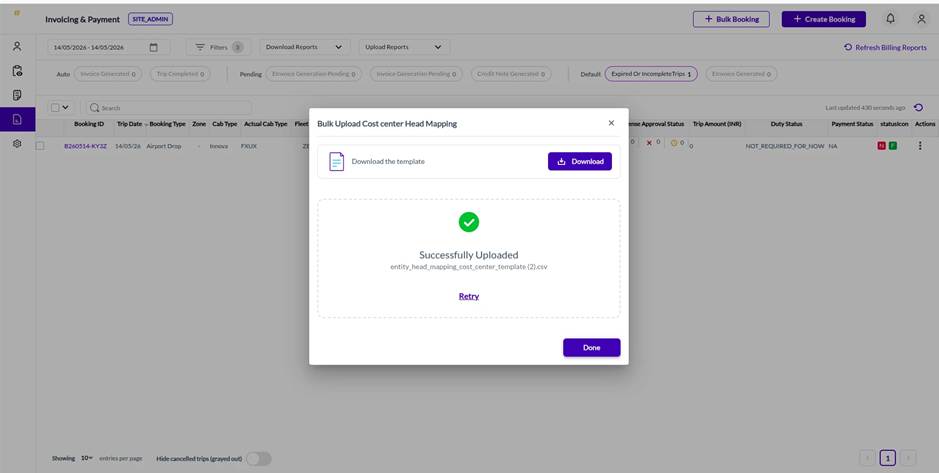
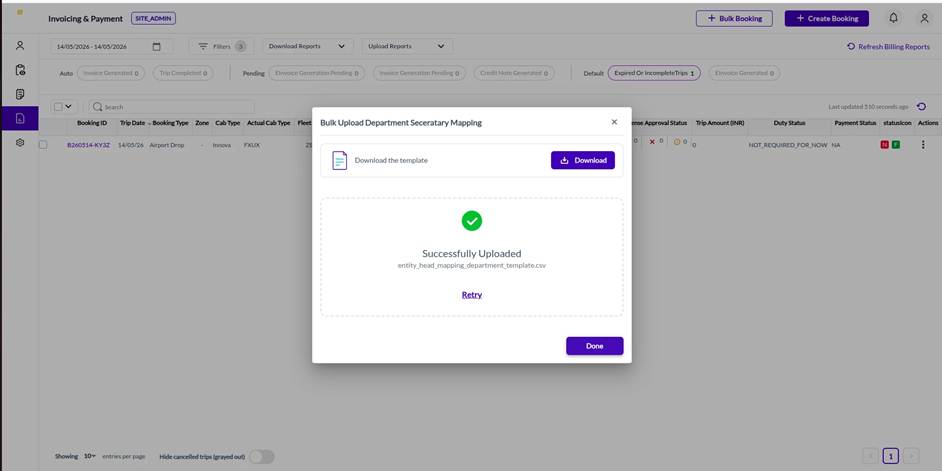
- If successful: A green success message will appear on your screen, and all assignments will take effect instantly.
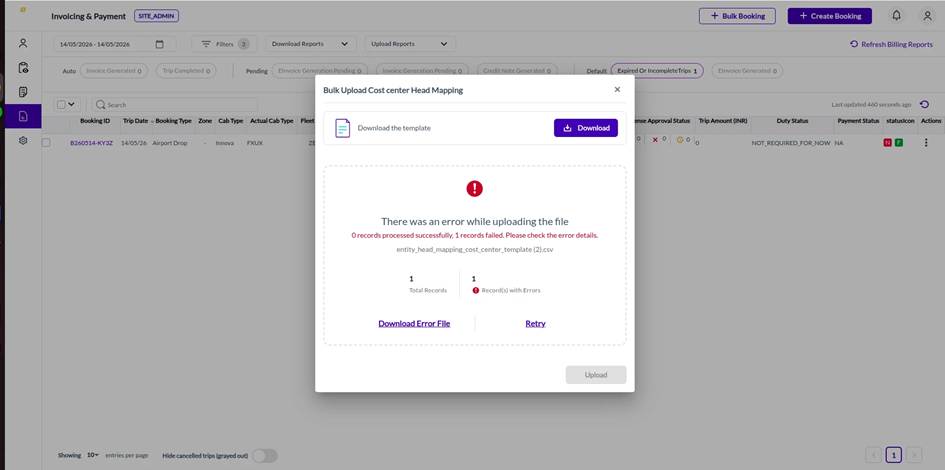
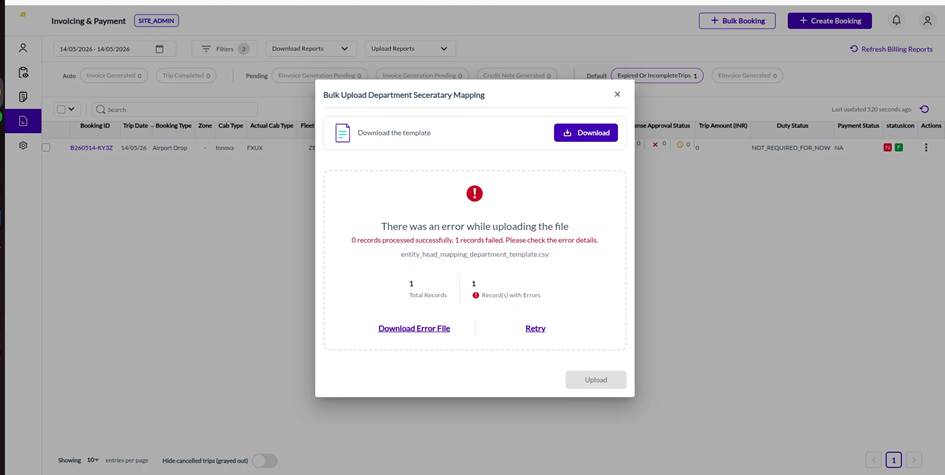
- If there are mistakes: The system will stop the upload and generate a downloadable error report spreadsheet. Open this report to see which exact rows have issues, fix them in your file, and upload the corrected file.
Common Errors and Solutions
Error Message | What it Means & How to Fix It |
"Entity not found: ..." | The system does not recognize the Department name or Cost Center code you typed. Check for typos or extra spaces. |
"Person not found for email: ..." | One or more email addresses are not registered in the system. Check the spelling of all emails, or make sure the users have signed up first. |
"Head email appears as both active and inactive..." | You listed the same email address as both active and inactive for the same department/cost center. Remove one of the conflicting rows. |
"No data rows found after the header row." | The file you uploaded is empty. Add at least one row of data before uploading. |
"Upload is already in progress..." | Another admin is uploading a mapping file right now. Please wait a minute and try again. |
If you have any other questions or run into unique issues, please reach out to your system administrator for help.
Was this article helpful?
That’s Great!
Thank you for your feedback
Sorry! We couldn't be helpful
Thank you for your feedback
Feedback sent
We appreciate your effort and will try to fix the article