Product Feature Document - Adhoc workflow
Overview
The Adhoc Workflow feature enables users to deviate from their planned schedules in case of urgent business requirements or personal reasons. Instead of relying only on predefined shifts, users can raise an adhoc schedule for immediate login or logout.
This workflow ensures that transport teams are notified of last-minute changes and can allocate resources accordingly, while also maintaining visibility and control through configurable permissions and approval processes.
Why is it used?
To accommodate last-minute business requirements (e.g., extended work, urgent login).
To handle personal emergencies (e.g., medical reasons, early logout).
To reduce dependency on manual interventions for schedule adjustments.
To ensure transport operations remain accurate and reliable despite unplanned changes.
How to Enable this Feature
ETS – Operations Configurations
FEATURE_ADHOC_REQUEST = TRUE
FEATURE_ADHOC_SHIFT_ALWAYS_AVAILABLE = TRUE
Mobile App Configurations
adhocAlwaysEnabled = true
etsFeatureAdhocShiftAlwaysAvailable = true
Post enablement:
ScheduleAdhoc option will be available in Manage Shift Configs.
Adhoc toggle option will be visible in both the mobile app and the web.
Role-based permissions must be granted to users for adhoc scheduling access.
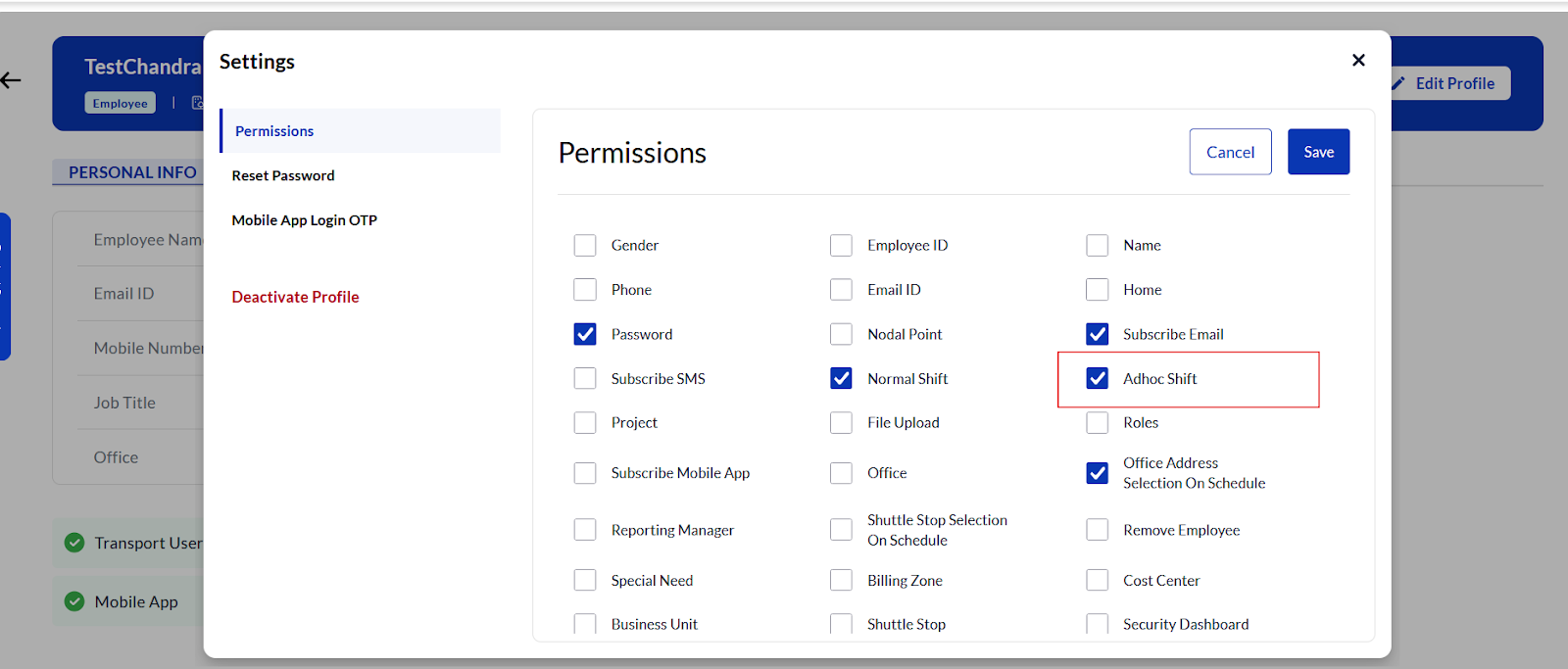
P.S. If the mobile app properties are not enabled, the adhoc toggle option will not be visible
Feature functionality:
When the shifts will be shown under adhoc ?
Below is the explanation on how to use the adhoc feature based on the scenarios below.
Planned Schedule: 09:00 AM login
Target Adhoc Schedule: 06:00 AM login
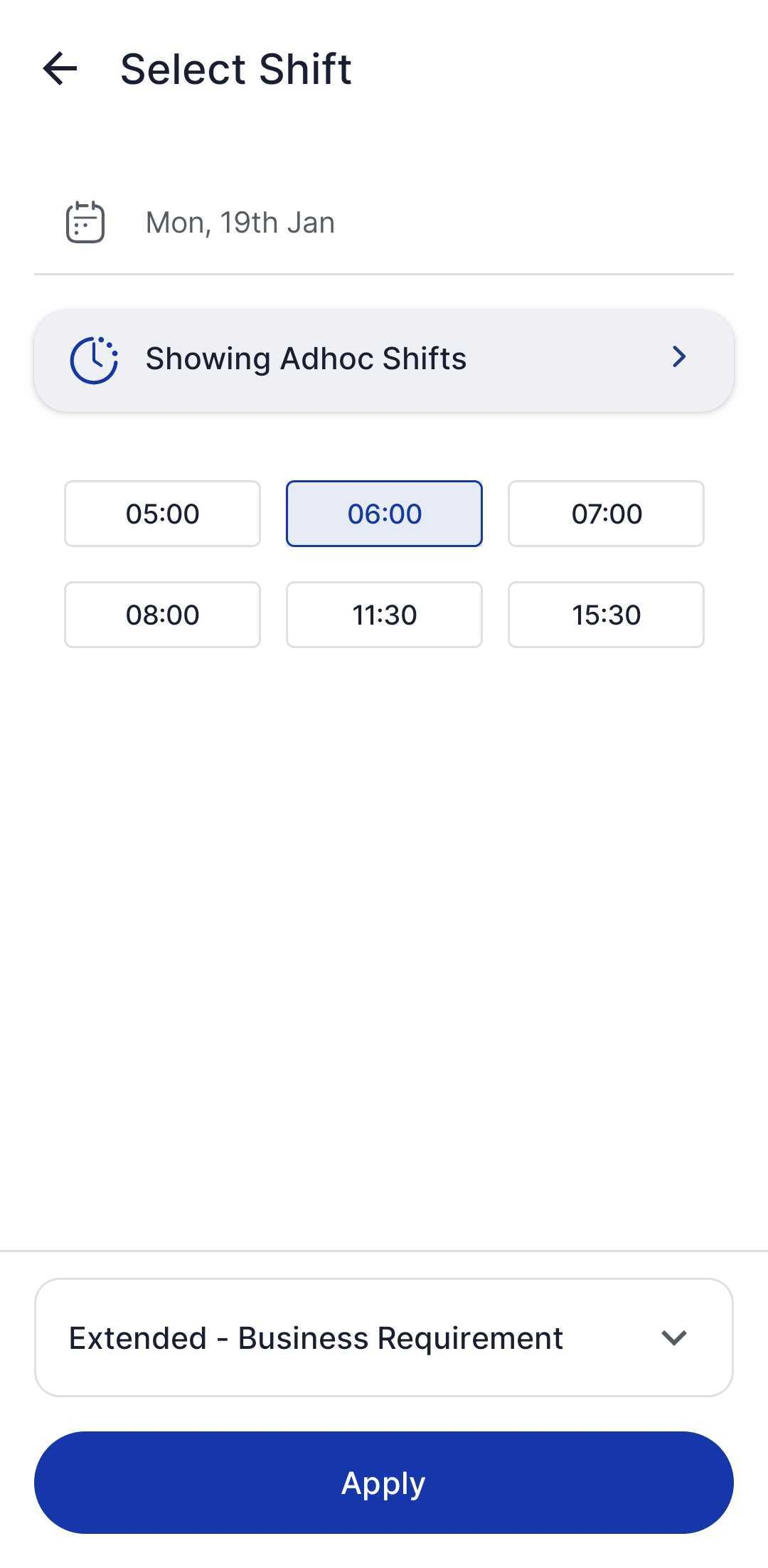
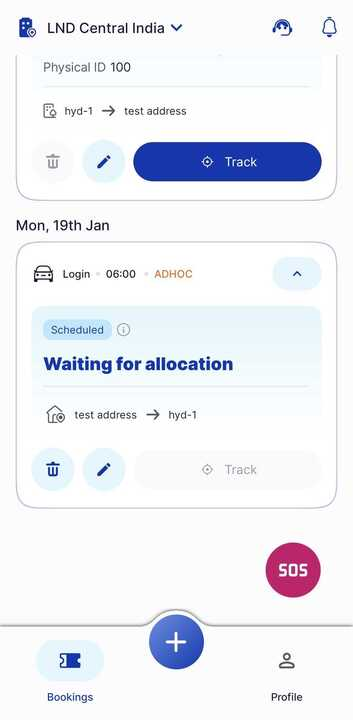
Case 1: If the 09:00 AM cut-off has not passed and 06:00 AM cut-off is still available → Ad-hoc allowed.
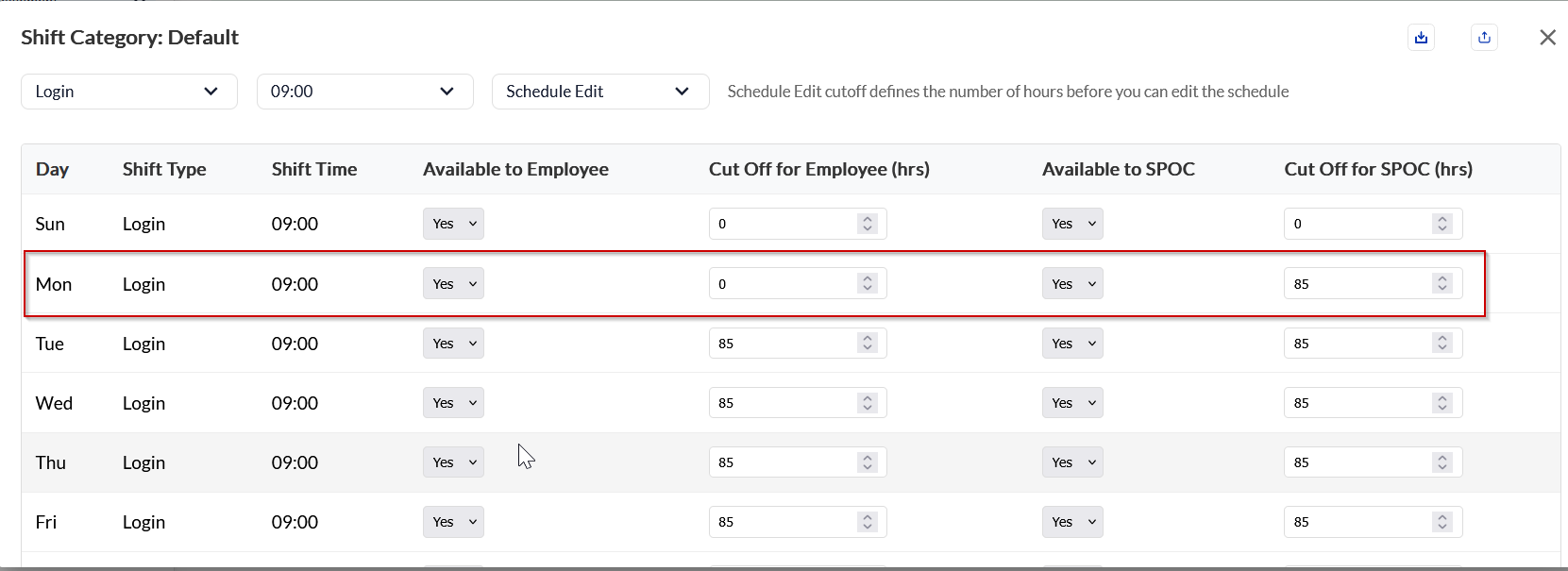
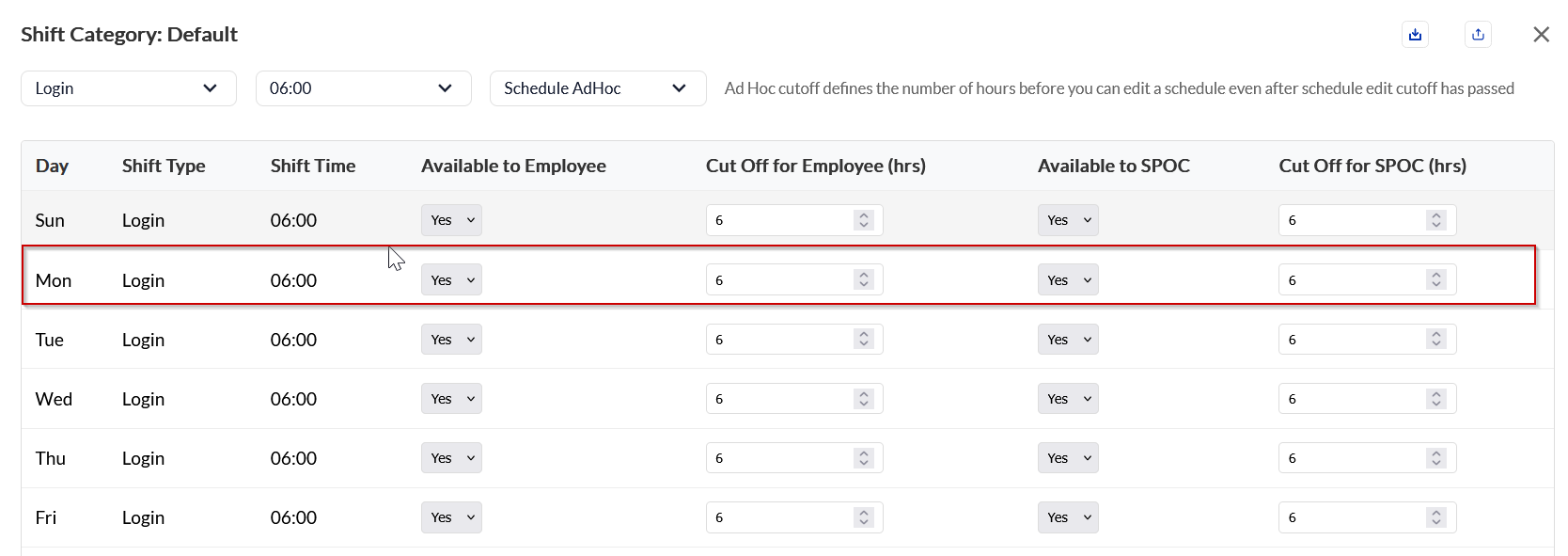
How to navigate:
Users can click on edit > toggle in the adhoc option > select the required adhoc > Apply
The existing normal/planned schedule will be replaced with an adhoc schedule
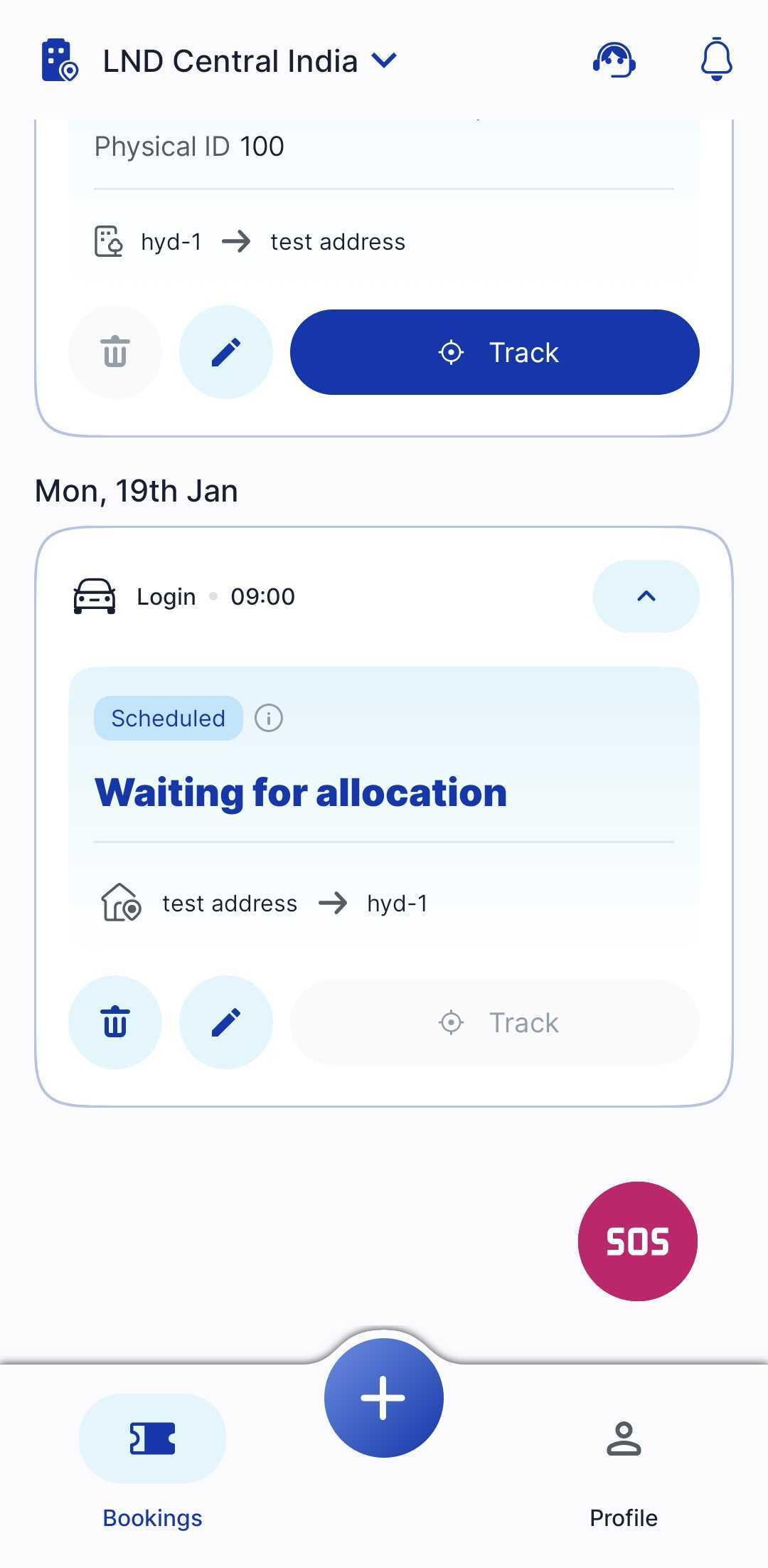
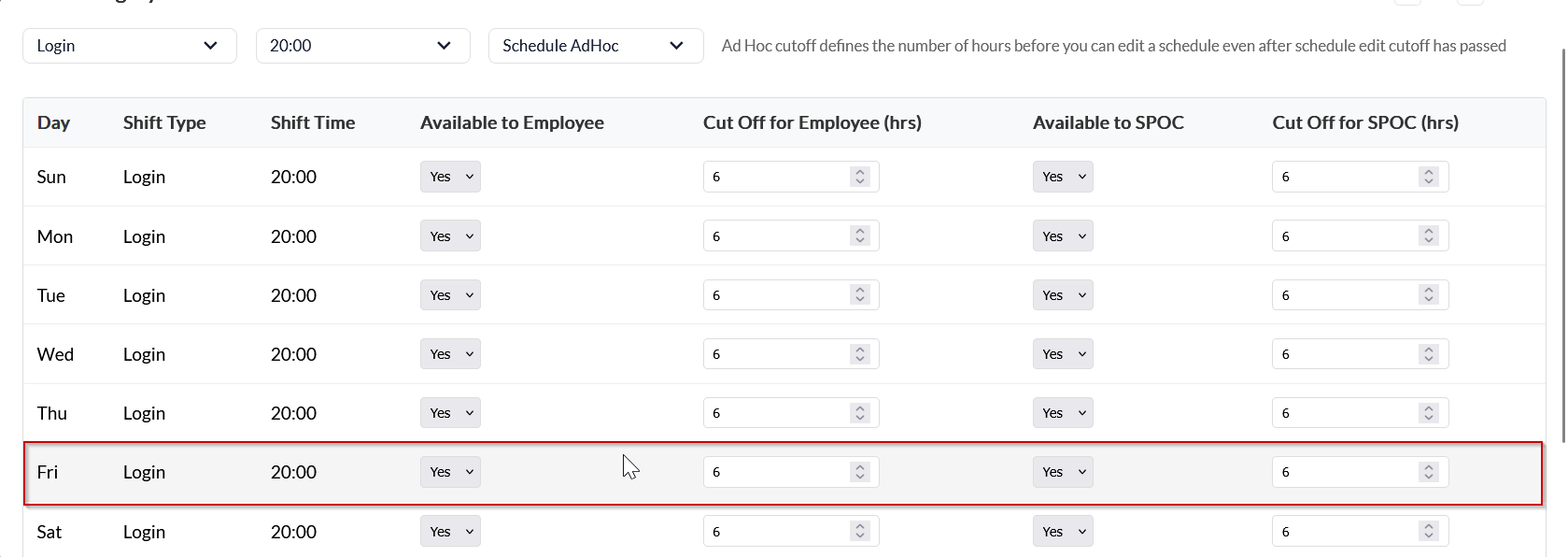
Case 2: If the 11:30 AM cut-off has passed and 08:00 PM cut-off is still available → Ad-hoc still possible as per enabled rules and configs.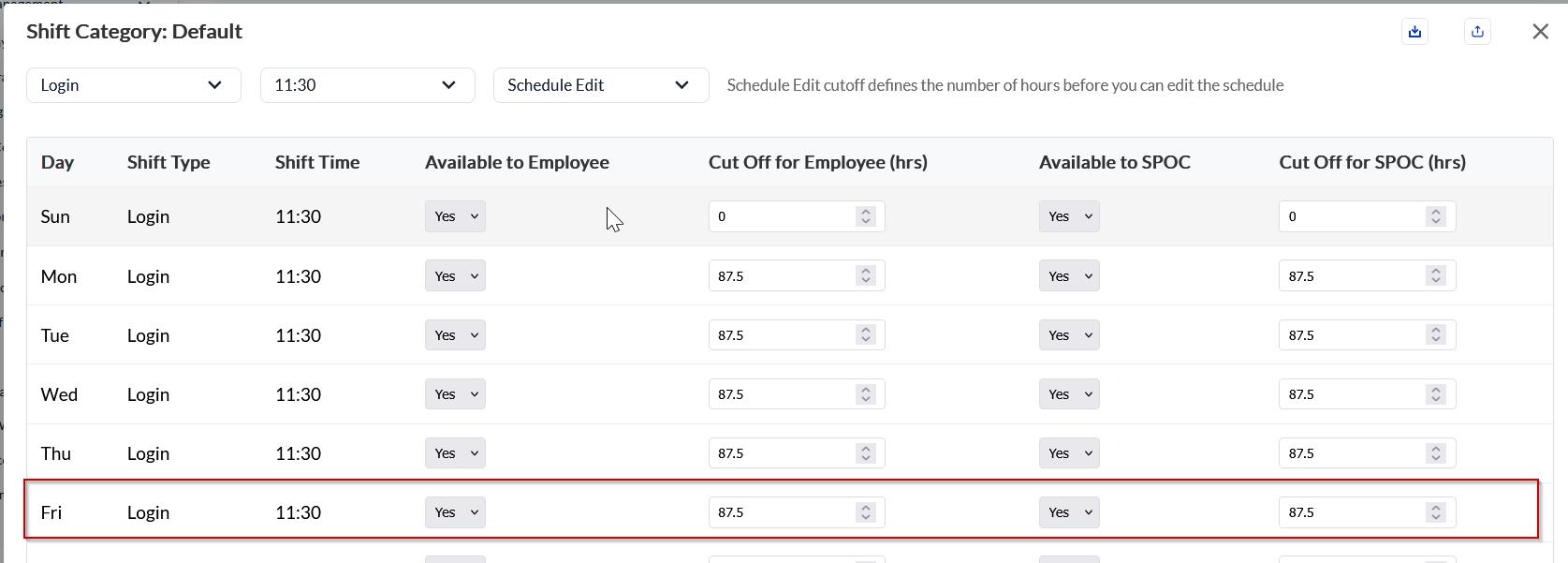
How to navigate:
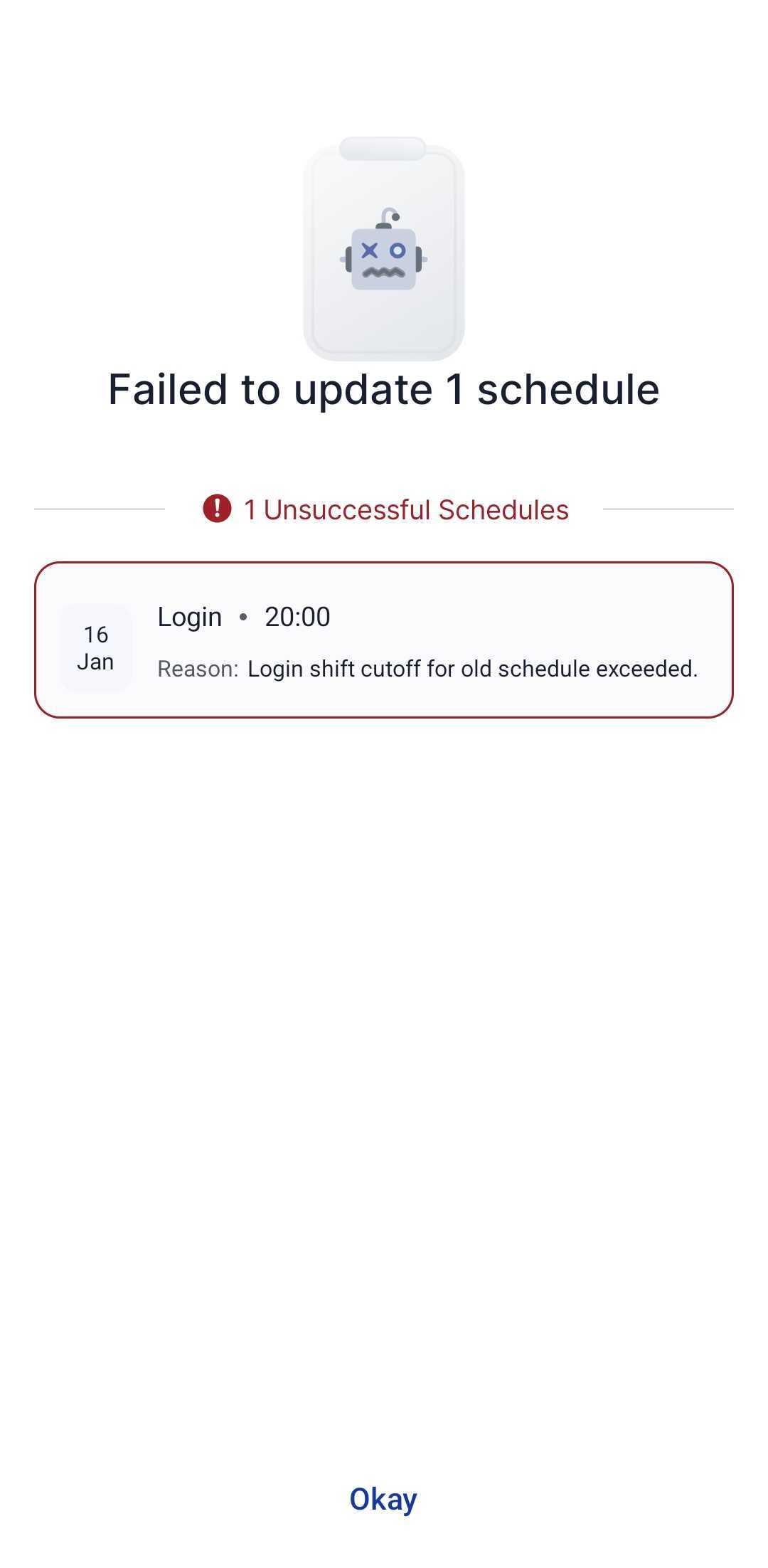
Users can click on edit > toggle in the adhoc option > select the required adhoc > Apply (it will fail as the cut-off for 11 AM is passed)
Click on (+) > select direction & date > Select the required adhoc > Apply
The existing normal/planned schedule will not be replaced. A new adhoc will be created.
The user has to cancel the planned one before the cancellation cut-off has passed if they are opting for adhoc.
It will be the user's responsibility.
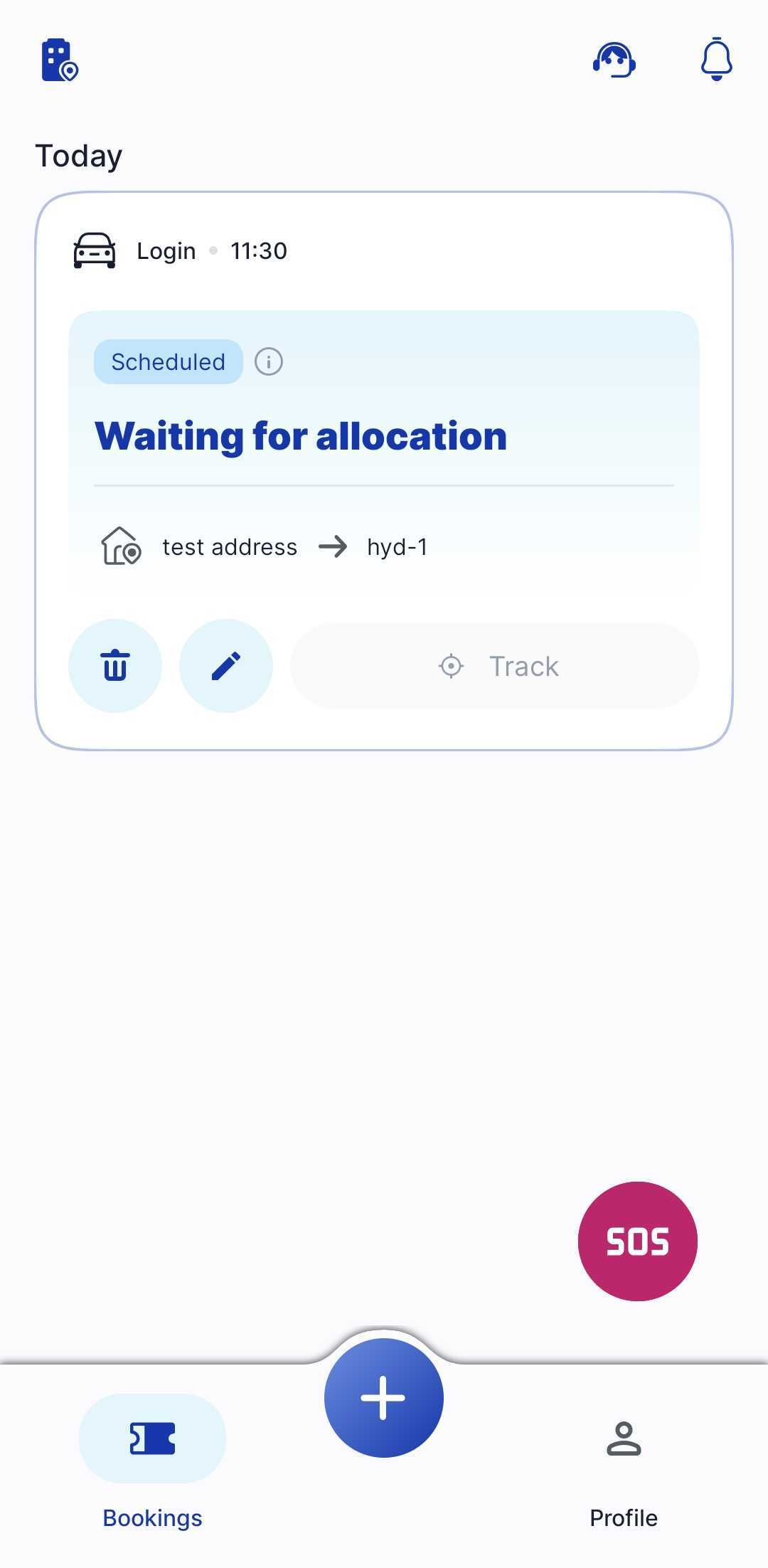
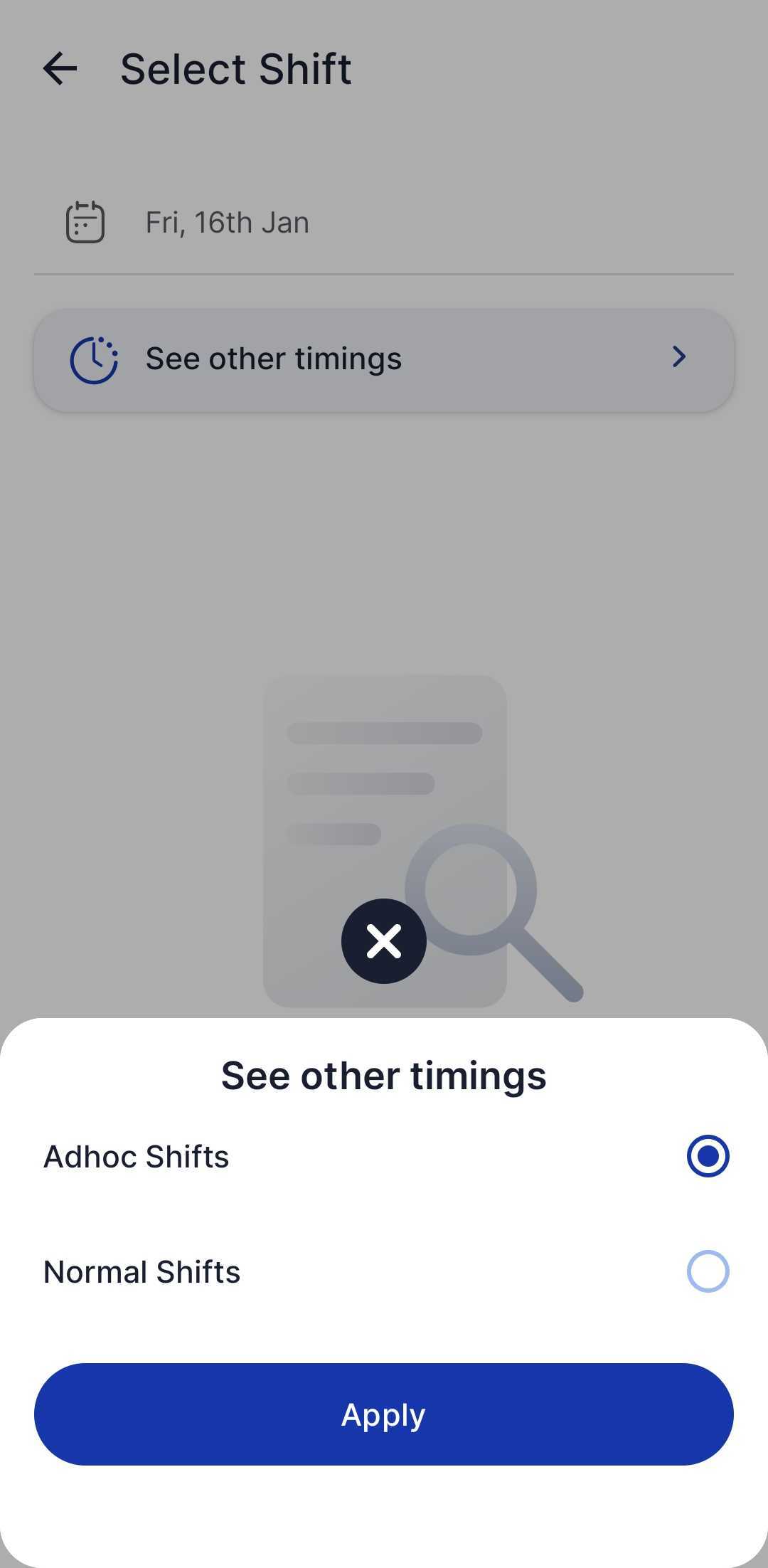
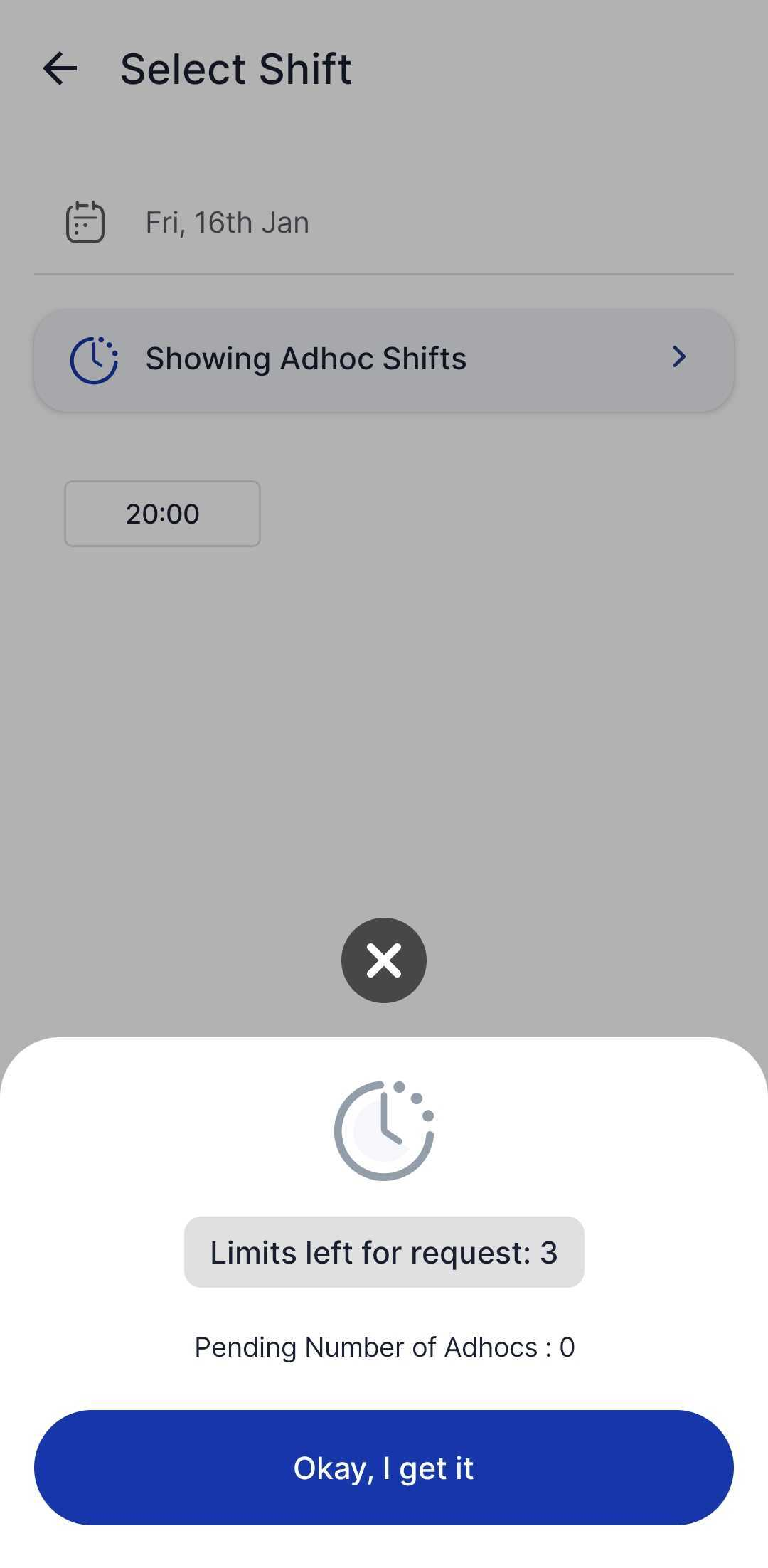

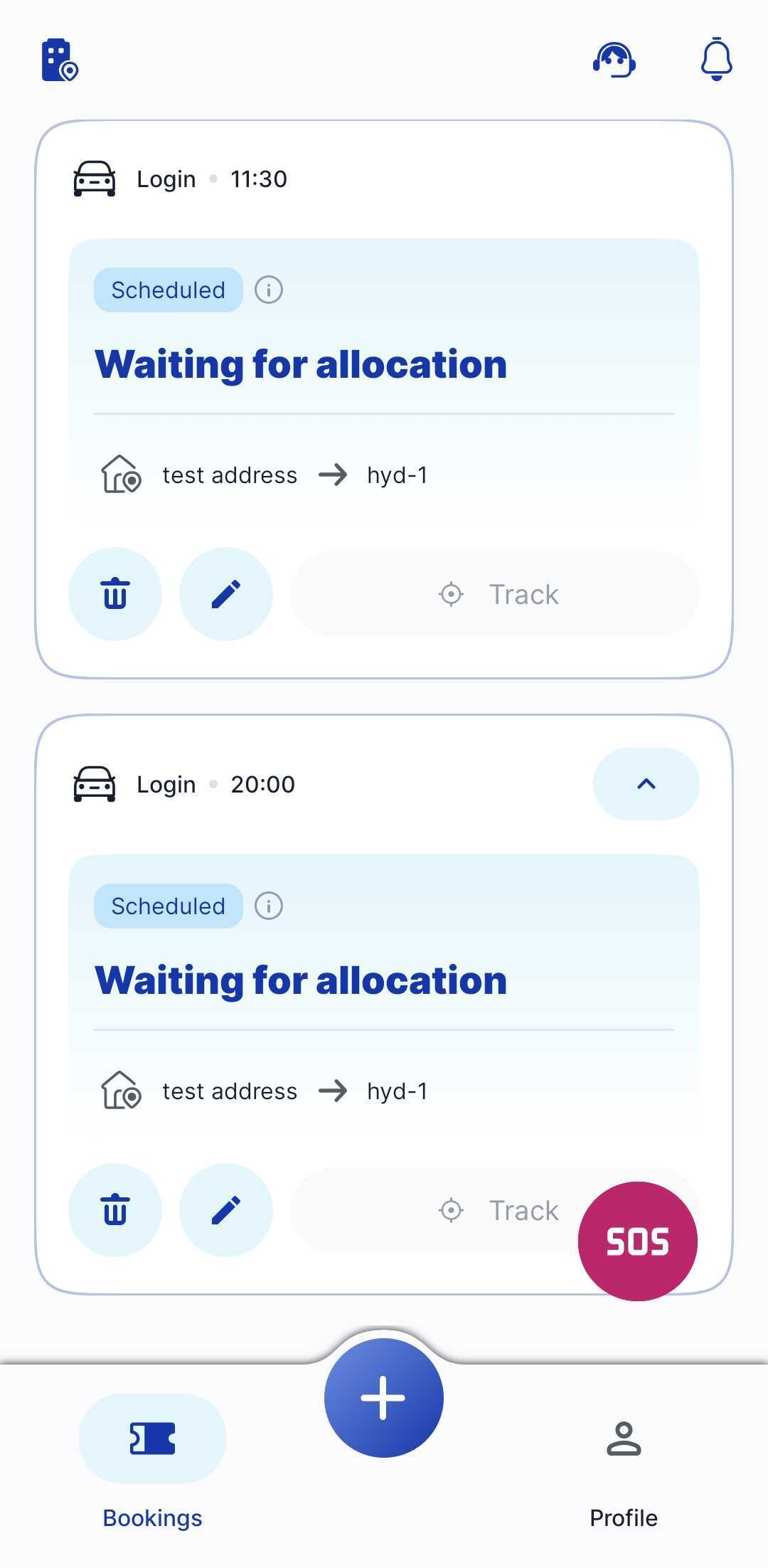
If tried via the edit option, it will fail with the below error message
P.S.
Ad-hoc cut-shift will only be shown once the normal shift cut-off has been passed.
Normal and ad-hoc cut-off shall not be the same, as it will conflict.
Additional Configurations
Restrict Number of Adhoc Requests
adhocRequestsPerDay = true → User can raise 1 adhoc request/day.
adhocRequestsPerDay = false → Unlimited adhoc requests allowed.
The provision of ad-hoc reason and approval process
In certain cases, adhoc requests require approval from a reporting manager or team manager.
Workflow:
User raises an adhoc request.
Schedule gets created immediately (to avoid operational delays).
Manager approval is validated post-creation.
The transport team provides cab services as per availability.
Approval/rejection records are captured in reports for audit & compliance.
Why Post-Validation?
Managers may be unavailable or occupied.
Ensures that adhoc transport arrangements are not delayed while waiting for approval.
Adhoc approval flow has various conditions/criteria for usability.
restrictNumberOfAdhocs
numberOfAdhocsThatCanBeRaised (It will decide the maximum number of adhoc requests that will be pending for any user before raising a new one.)
autoActionType (It will decide the number of days after which the pending requests shall be approved or rejected)
reviewCommentsApproval
reviewCommentsRejected
adhocRequestReason
(These are the reasons for approval, rejection, and for raising the request that is configurable)
enableReportingManagerEmailOnRequestRaise
enableReminderEmailToReportingManager
(It will trigger an email to the reporting manager)
enableAdhocApprovalRejectionEmailToEmployee (It will trigger an email to the user post action taken)
Approval dashboard configuration:
CMS → ETS → build → adhocApprovalConfig
New workflow
{
"adhocApprovalWorkflow": "true",
"restrictNumberOfAdhocs": "true",
"numberOfAdhocsThatCanBeRaised": "3",
"adhocApprovalRequestTeamManager": "true",
"autoActionType": "APPROVAL" or “REJECTION”,
"autoActionRequestAfterDays": 3,
"reviewCommentsApproval": [
"Transport Permitted",
"Employee Needs to travel due to urgency",
"Employee Need to Visit Other Office location",
"Due to Illness",
"Due to Emergency",
"Employee Travelled due to Adhoc Work",
"No Reason"
],
"reviewCommentsRejected": [
"Transport not Permitted",
"Employee Informed late",
"Employee Opted Leave",
"Employee Changed the Schedule",
"Employee Cancelled schedule"
],
"adhocRequestReason": [
"Extended - Business Requirement",
"Personal Emergency",
"Medical Emergency",
"Missed Scheduled Cab",
"Application Error",
"Early Logout",
"Secondary Address Drop Request",
"Secondary Address Pickup Request"
],
"enableReportingManagerEmailOnRequestRaise": "true",
"enableReminderEmailToReportingManager": "true",
"enableAdhocApprovalRejectionEmailToEmployee": "true"
}
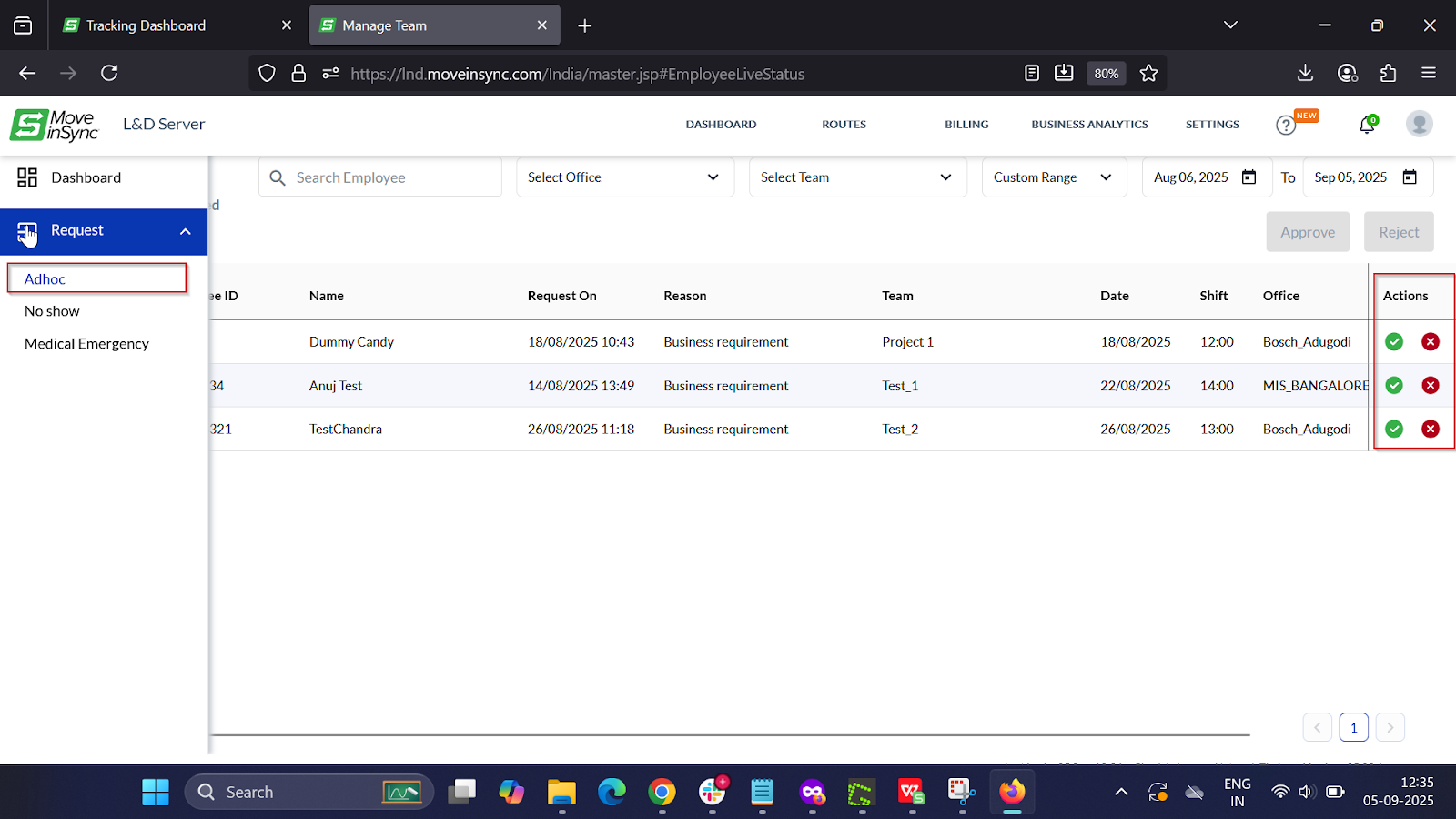
Adhoc approval dashboard view:
Manage team > Live status > Request > Adhoc > Approve/reject
Was this article helpful?
That’s Great!
Thank you for your feedback
Sorry! We couldn't be helpful
Thank you for your feedback
Feedback sent
We appreciate your effort and will try to fix the article