Overview
Drivers can securely access the Completed Trips page using OTP-based authentication. This ensures that completed trip details are available to the driver even if trips were completed on a different device.
Prerequisites
Driver App version: 6.6.0 or higher
Driver must have a valid mobile number configured
Supported Authentication Options
The OTP delivery method is controlled via configuration:
NONE – No OTP required
WHATSAPP – OTP sent via WhatsApp
SMS – OTP sent via SMS (default)
How It Works
Open the Driver App.
Navigate to Completed Trips.
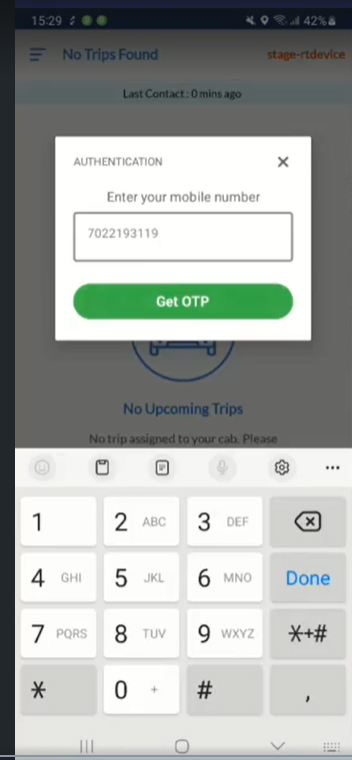
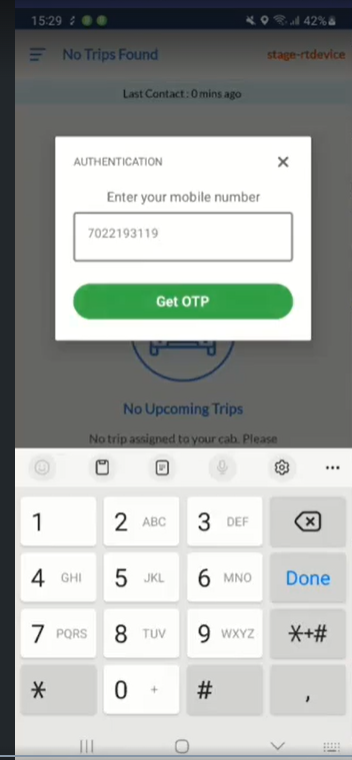
Enter the registered mobile number.
Authenticate using the OTP received via the configured channel.
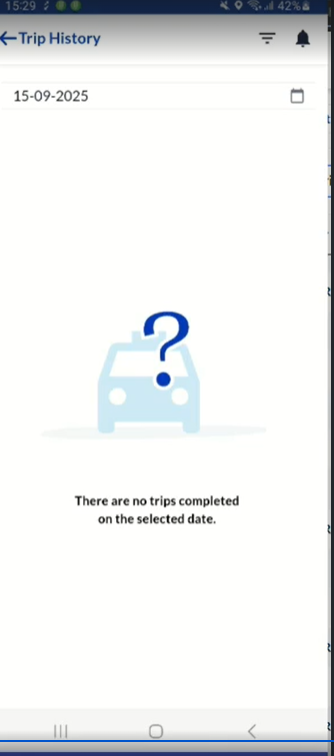
Once verified, all completed trips linked to the driver will be displayed.
✅ Trips will be visible regardless of the device used to complete them.
Important Notes & Known Behavior
1. Driver Not Associated With a Cab
If the driver is not associated with any cab, the Completed Trips page may show:
“No trips found.”
2. Trip Visibility Across Devices
If a driver completes trips on another driver’s device, those trips will still appear once the driver authenticates using their mobile number.
3. Delay in Showing Recently Completed Trips
Newly completed trips may not appear immediately due to sync delays.
Recommended Actions:
Wait for the next polling cycle, or
End the current duty and start a new duty to refresh the trip list.
Troubleshooting Checklist
Ensure the driver app is updated to v6.6.0 or later
Verify the driver is associated with a cab
Confirm OTP is received via the configured channel
Retry after restarting duty if the trip is missing
Was this article helpful?
That’s Great!
Thank you for your feedback
Sorry! We couldn't be helpful
Thank you for your feedback
Feedback sent
We appreciate your effort and will try to fix the article