Overview
The Cab Capacity Warning feature in Rentlz ensures that users select an appropriate cab type according to the number of riders added to a booking. This feature prevents cases where the selected cab cannot accommodate all riders, improving booking accuracy and reducing operational errors.
This feature helps maintain consistency and correctness in cab bookings.
It alerts users when the number of riders exceeds the selected cab’s seating capacity and guides them to correct the issue before proceeding further.
How this feature works
The warning message appears when the following condition is met:
Number of Riders > Cab Capacity
This validation occurs when a user attempts to proceed from the Trip Details page after selecting a cab type.
How to Configure
Workflow Property: "cabTypeCapacityRestrictionLevel":"HARD",
You need to update the above in the Workflow config folder of the required site.( for transport manager, employee, vendor Manager and All folders )
Possible Values: SOFT, HARD, FILTER
Data Dependency: fetchCabTypesFromETS = true ensure accurate cab capacity data from ETS.( Make sure this is true , it will be present in Miscellaneous Folder ).
Configuration Behavior
This feature operates in different modes depending on how your organization configures Rentlz.
Warning Message
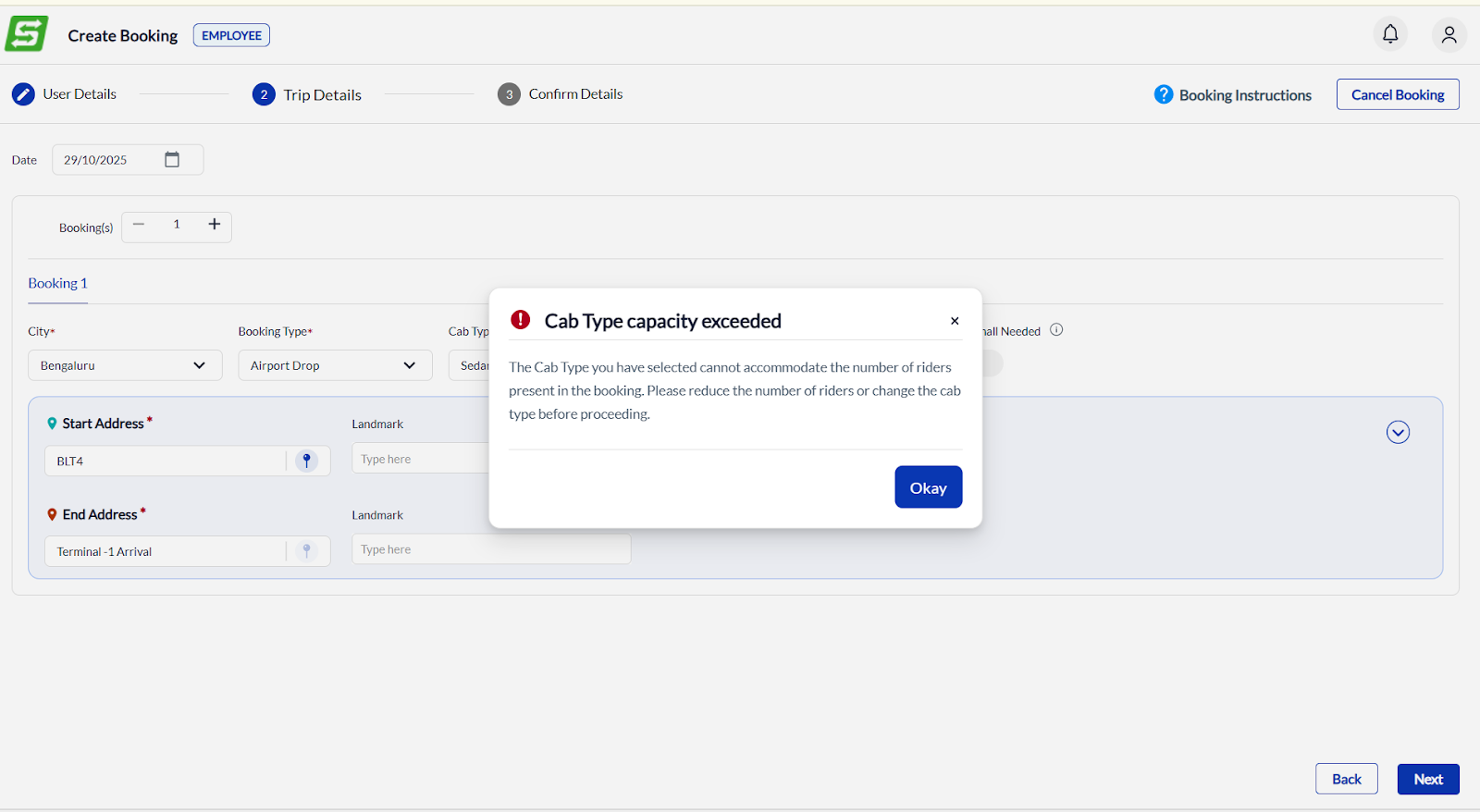
When the above condition is triggered, a popup displays the following message:
“The Cab Type you have selected cannot accommodate the number of riders present in the booking. Please reduce the number of riders or change the cab type before proceeding.”
Workflow
The following steps describe how the Cab Capacity Warning feature functions during a standard booking process in Rentlz.
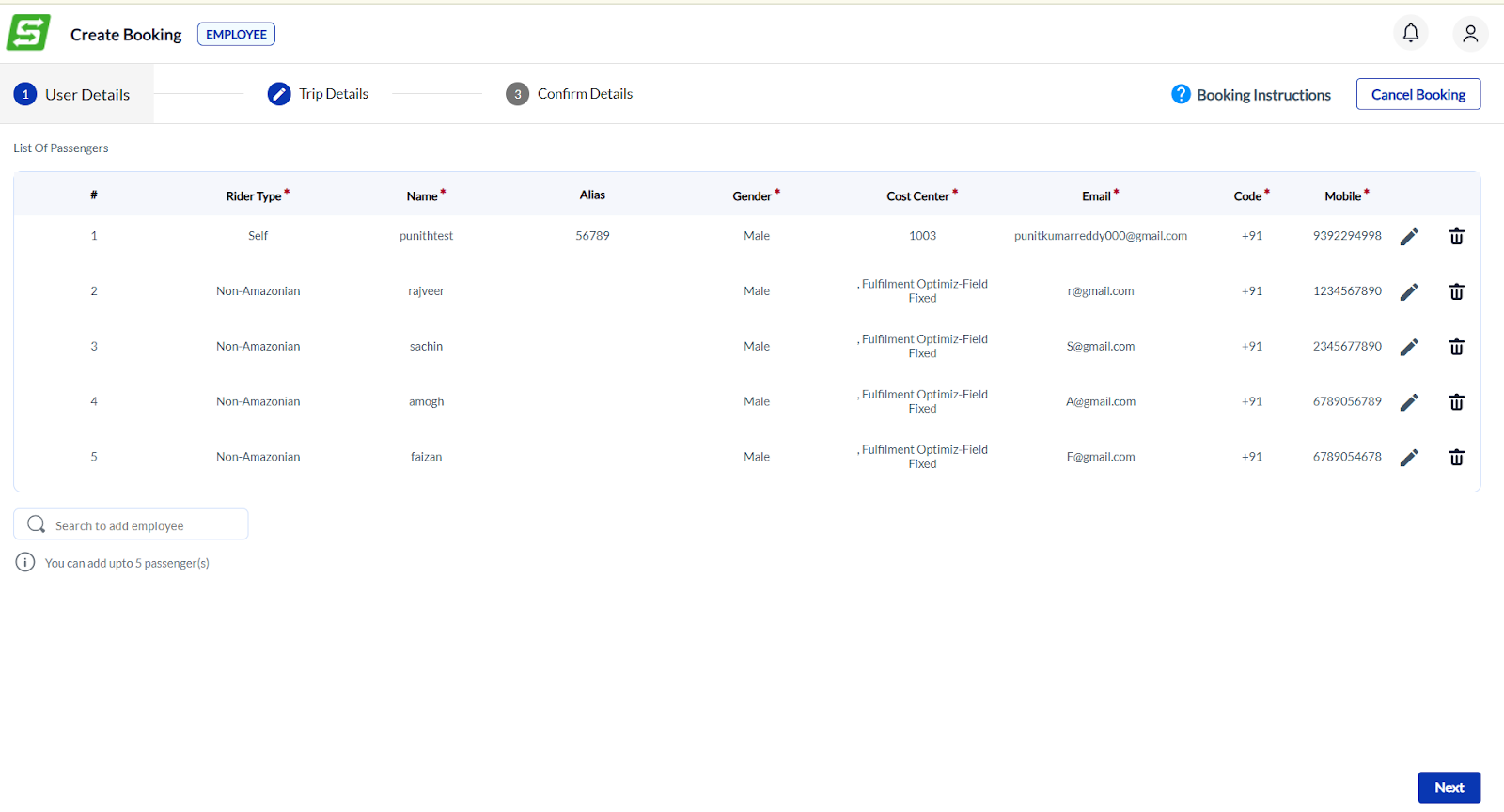
Step 1: Add Riders
Navigate to Create Booking → User Details.
Add passengers under List of Passengers.
You can add multiple riders as per your booking needs.
Step 2: Select Trip Details
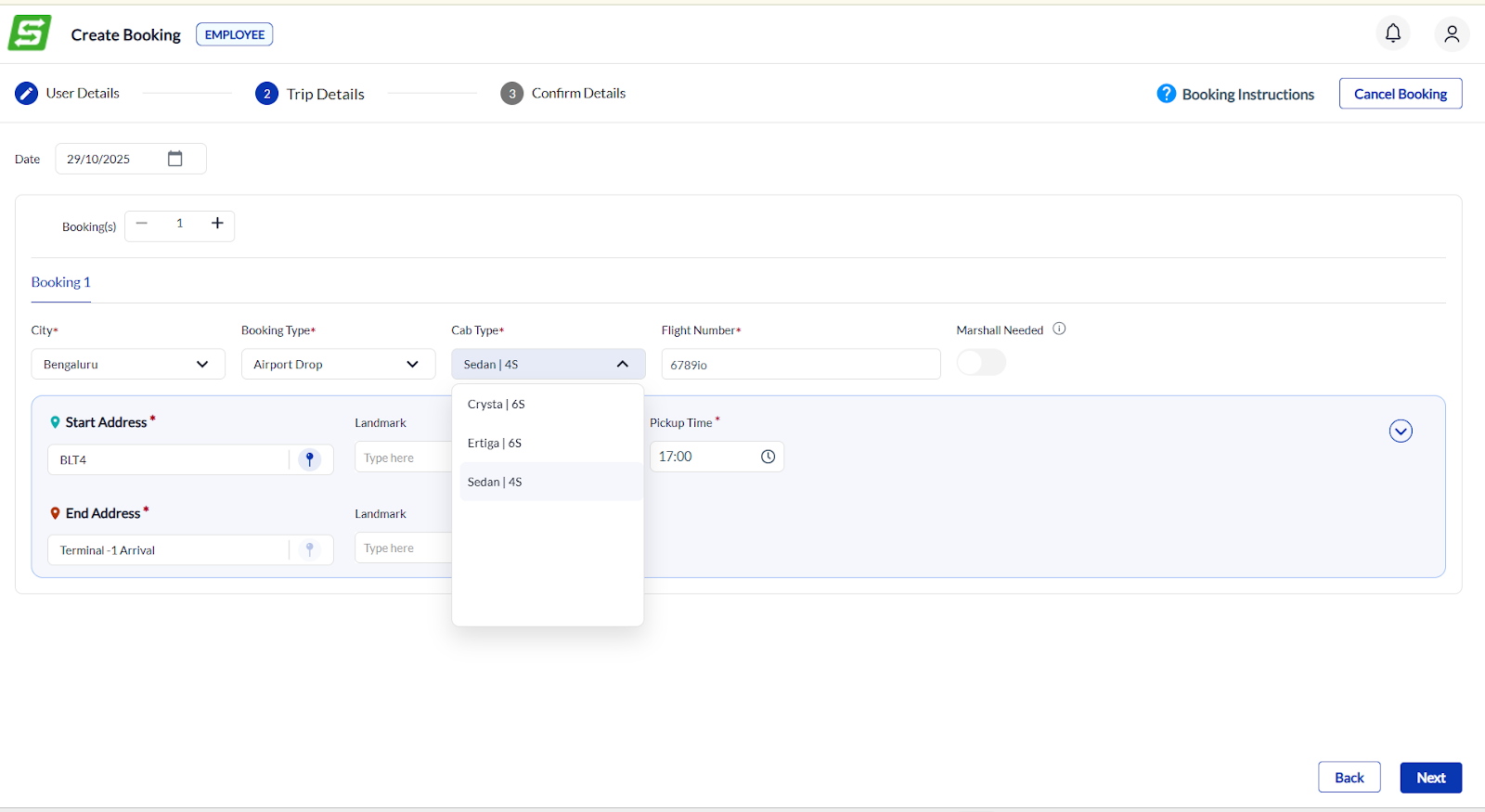
Proceed to the Trip Details tab.
Select the City> Booking Type > Cab Type from the available dropdowns.
Enter the trip specifics like Pickup Address, Drop Address, Flight Number, or Pickup Time.
Choose a cab type that matches the total number of riders added in the previous step.
Step 3: Capacity Validation and Warning
After entering all details, click Next to continue.
The system now compares the Number of Riders with the Selected Cab Type Capacity.
If the riders exceed capacity, Rentlz immediately shows a warning popup.
Based on configuration:
Soft Warning: Users may proceed despite the alert.
Hard Warning: The system blocks progression until the issue is fixed.
Filter Mode: Overcapacity cab types are automatically filtered out.
Was this article helpful?
That’s Great!
Thank you for your feedback
Sorry! We couldn't be helpful
Thank you for your feedback
Feedback sent
We appreciate your effort and will try to fix the article